To install the pro version of the WooCommerce Packaging Materials plugin, first log in to your account, and download the zip file from the “Downloads” section.
Once it’s downloaded, head over to your site’s admin dashboard, then browse to “Plugins”. If you have the free version of Packaging & Extras installed, deactivate it before installing the Pro version. Now click “Add New”. Near the top-left of the screen, you’ll see an “Upload Plugin” button. Click on the button to open the file uploader, then select the zip file and click the “Install Now” button:
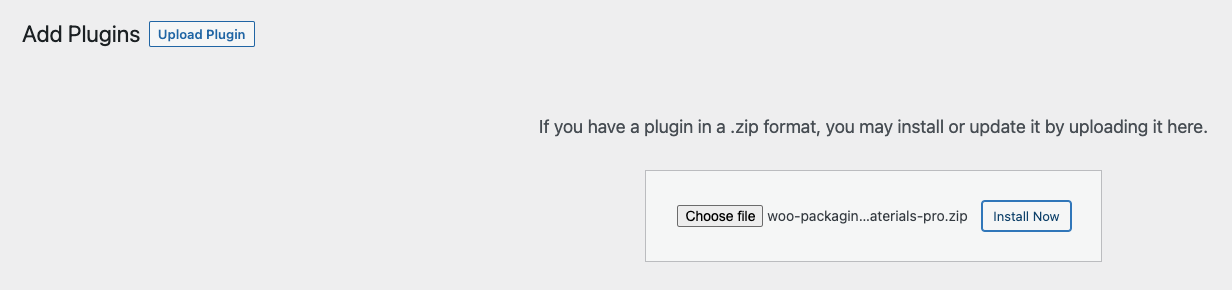
Once it’s installed, activate the plugin and you’re ready to start adding your packaging materials.
Packaging materials and extra items are added just like you would add products to your store. They won’t be displayed on your store’s frontend though, so there’s no need to worry about customers finding them.
To add a new packaging/extra, browse to “Products” > “Add new” and select the “Packaging & extras” product type. Now enter the amount of stock you have for this item in the input below:

Below the stock quantity, you can set a “Low stock threshold”. When this item’s stock reaches (or goes below) this threshold you’ll receive a notification by email, just like with normal products. If you don’t enter a value for the low stock threshold, it will default to your store-wide threshold, which is set in “WooCommerce” > “Settings” > “Products” > “Inventory”.
To set up packaging/extras usage on a per-order basis, open the “Usage per order” tab:

There are 2 different ways to set up usage per order; basic, and conditional. Basic usage can be set up by simply adding the number of items used per order in the “Amount used” field. When an order is placed, this much stock of the item will be reduced.
To set up conditional usage, check the “Enable conditional logic” checkbox. This will open up a new section where you can set up your conditional rules:

Click on the “Add a new ruleset” button to add your first ruleset. Once you’ve added a ruleset, you can set conditions within it to determine when stock of this item will be reduced:

You can add multiple rulesets with multiple conditions. For example, if we wanted to reduce the stock of this item by 1 when an order is to be shipped to the UK and contains 2 or less items, or reduce stock by 2 when an order is to be shipped to the US and contains 3 or more items, we could set it up like this:

There are many different conditions you can use in your conditional logic, including:
- Shipping zone
- Shipping method
- Order includes shipping class
- Most expensive shipping class
- Destination country
- Payment method
- Total order items
- Total order weight
- Total order price
- Order uses coupon code
Note the “Rule treatment” option at the bottom. Depending on your scenario, you may want your rulesets to be treated differently.
For example, let’s say you are running a promotion on your store where customers can enter coupon codes to receive a free gift with their order. Imagine you have three different coupon codes set up which all give the same free gift. You have your free gift set up as a packaging and extras item, and you have three rulesets (one for each coupon code) which each reduce the stock of the free gift by 1.
If you wanted to limit this giveaway to one free gift per order, you can use the default “Rule treatment” option; “Once a rule is matched, stop checking other rules”. However, if you wanted to give your customers the opportunity to enter two or even three of the coupon codes and receive a free gift for each one entered, then you would want to use the other option; “Reduce stock for every rule that is matched”.
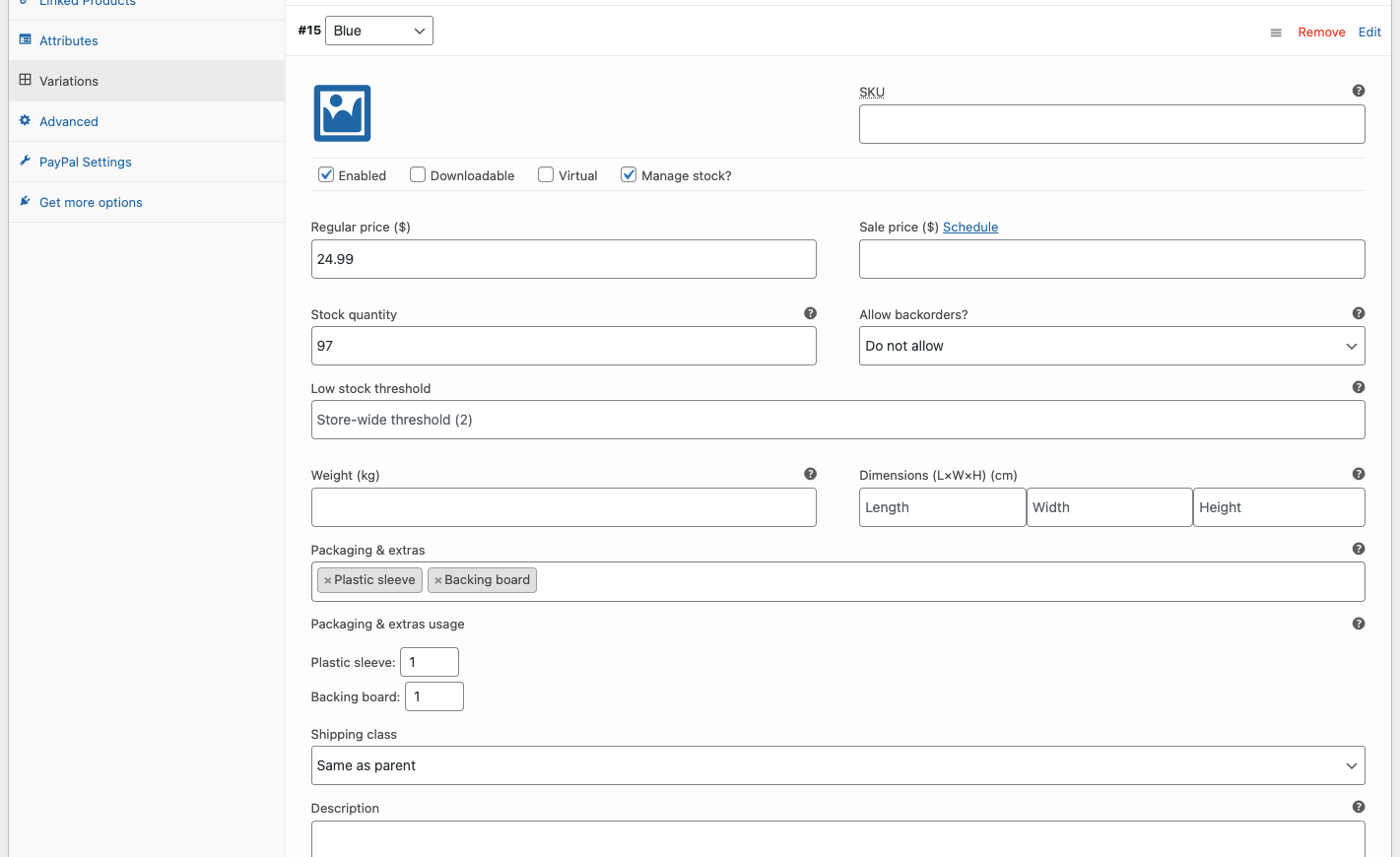
Packaging and extras can also be set up to be used on a per-product basis, including on individual variations. To do this, browse to the product which you’d like to use your packaging/extras with and browse to the shipping tab. From here you can select multiple packaging and extras items, and set the amount used whenever this product is ordered:

To set up packaging/extras usage on individual variations, the settings can be found by opening a variation and looking above the shipping settings: